
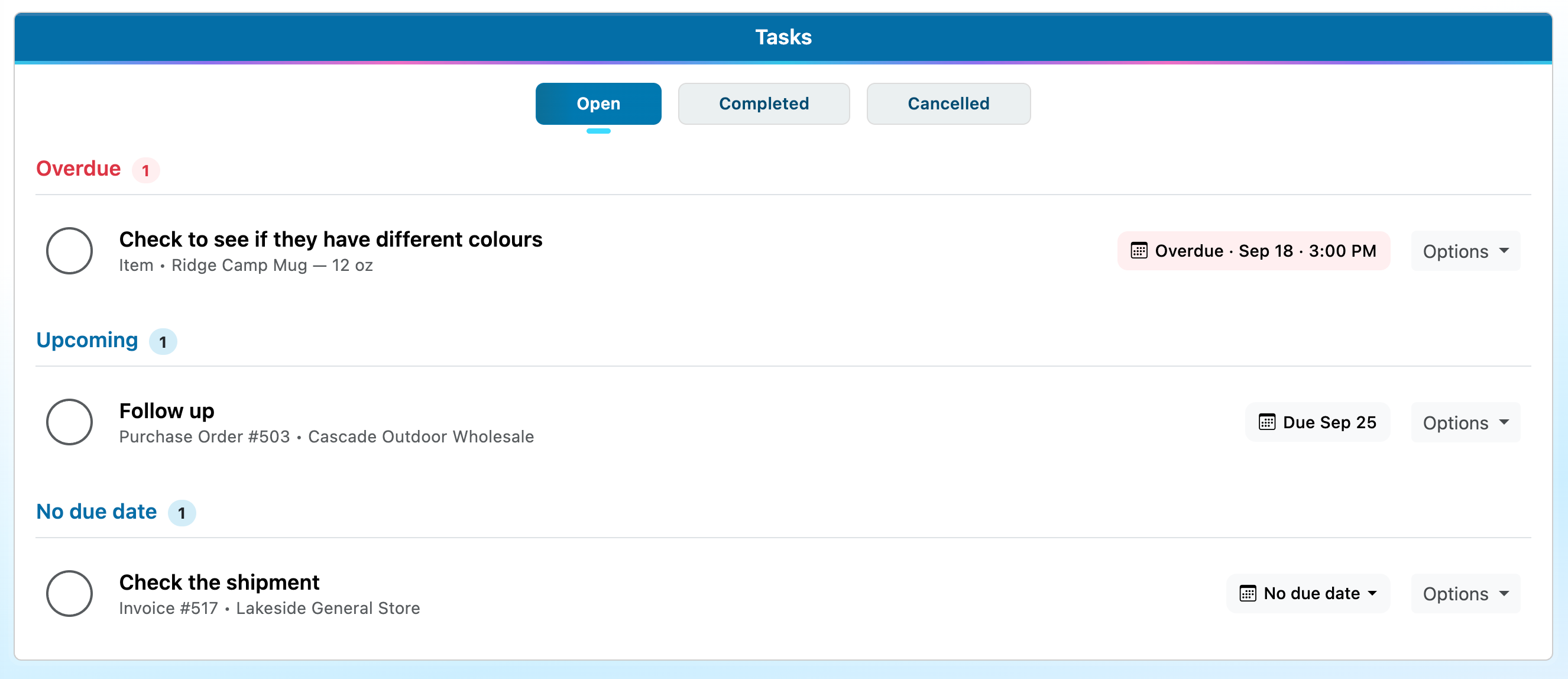
Create your first task
- Open Tasks in SalesBinder and click New Task.
- Under What needs to be done?, enter a short, clear title—for example, “Follow up with Jamie about their estimate.”
- Use Assigned to to choose yourself or another team member.
- Expand Description if you’d like to add notes or instructions.
- Add a due date and reminder if needed, then click Create Task.
The person assigned to the task receives its reminder. If you only see Assigned to you, your current permissions allow you to create tasks for yourself. Ask your account administrator if you need to assign tasks to others.
Set a due date and time
Expand Due Date & Reminder to choose when the task should be finished.
You can set a due date on its own, or add a due time for a more specific deadline. Both are optional, so you can also create a task without a deadline and schedule it later.
Your open tasks are grouped into Overdue, Today, Upcoming, and No due date, making it easy to see what needs your attention.
When scheduling work for someone in another time zone, use Scheduling timezone to choose My time zone or Their time zone.
Choose when to be reminded
A due date is your deadline. A reminder is the notification that prompts you to act.
In the Reminder field, choose:
- No reminder
- At the due time
- 1 hour before
- 24 hours before
- Choose a date and time
The options based on the deadline require both a due date and a due time. Choose a custom reminder date and time if you want your notification on a separate schedule—even if the task has no deadline.
For example, you could make a customer follow-up due tomorrow at 3:00 PM and set a reminder for one hour before. The task is due at 3:00 PM, but you’ll get your nudge at 2:00 PM.
See reminders in your browser
While you’re signed in and have SalesBinder open in your browser, triggered reminders appear as pop-up messages inside SalesBinder. You don’t need to stay on the Tasks page.
From a reminder, you can open the task, mark it completed, snooze it, or dismiss it.
You can also click Reminders on the Tasks page to review triggered reminders and see upcoming scheduled reminders.
Get reminders on your iPhone
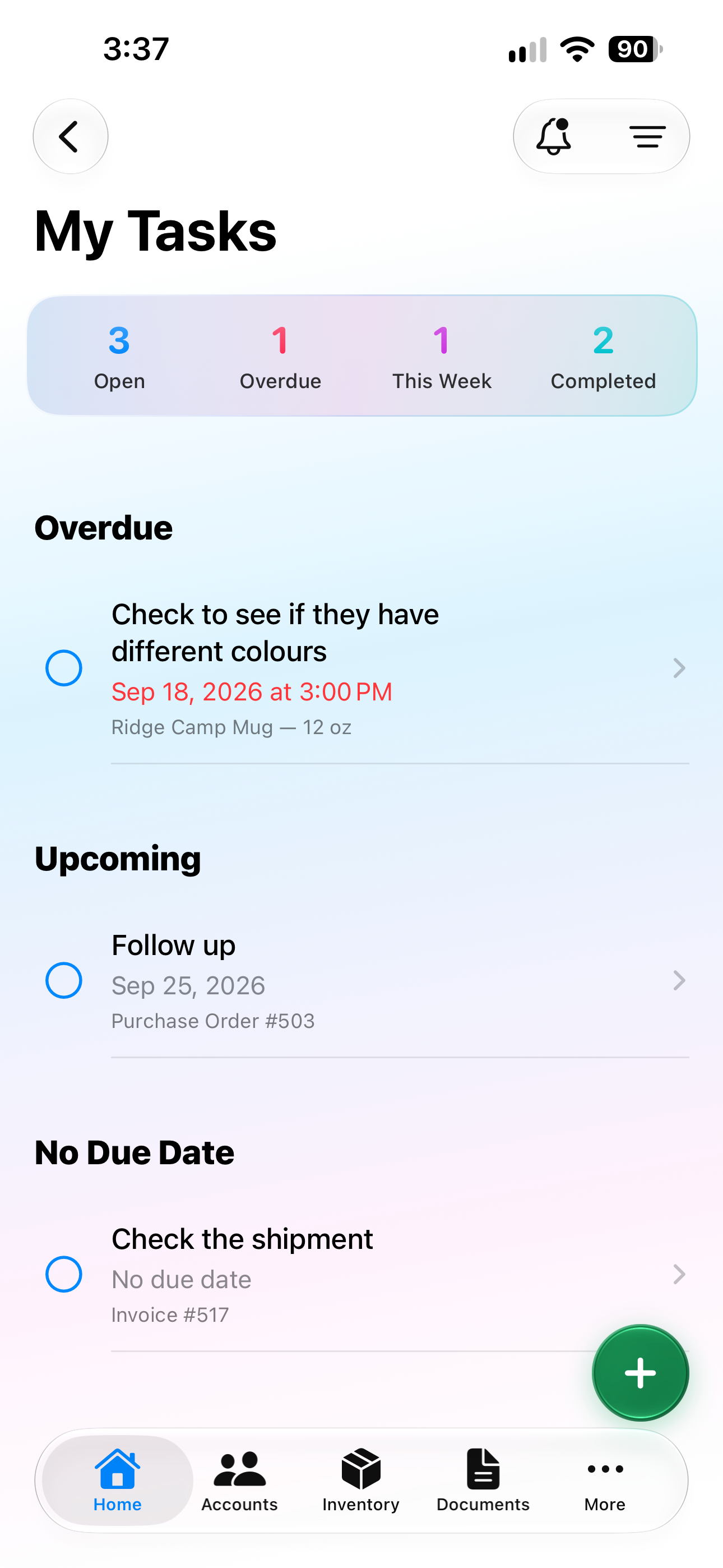
With the new SalesBinder iPhone app, task reminders can also reach you as push notifications when you’re away from your browser.
To get started:
- Sign in to your SalesBinder account in the iPhone app.
- Open More → Notifications.
- Tap Enable Push Notifications if prompted, and allow notifications on your iPhone.
If notification access was previously turned off, use Open iOS Settings to enable it.
When a reminder is triggered, you can tap the push notification to open the task in the app. Reminders also appear inside the app, so you can review and act on them there.
To find your tasks, open More → My Tasks. Use Reminders to view triggered and upcoming reminders.
Complete, snooze, or dismiss
When a reminder arrives, choose the action that fits:
- Complete when the work is finished.
- Snooze when you want another reminder later. Snoozing changes the reminder time but keeps the task’s due date unchanged.
- Dismiss when you no longer need the reminder. Dismissing a reminder does not complete the task.
You can also edit the task to change its details, assignment, deadline, or reminder.
Create tasks directly from a record
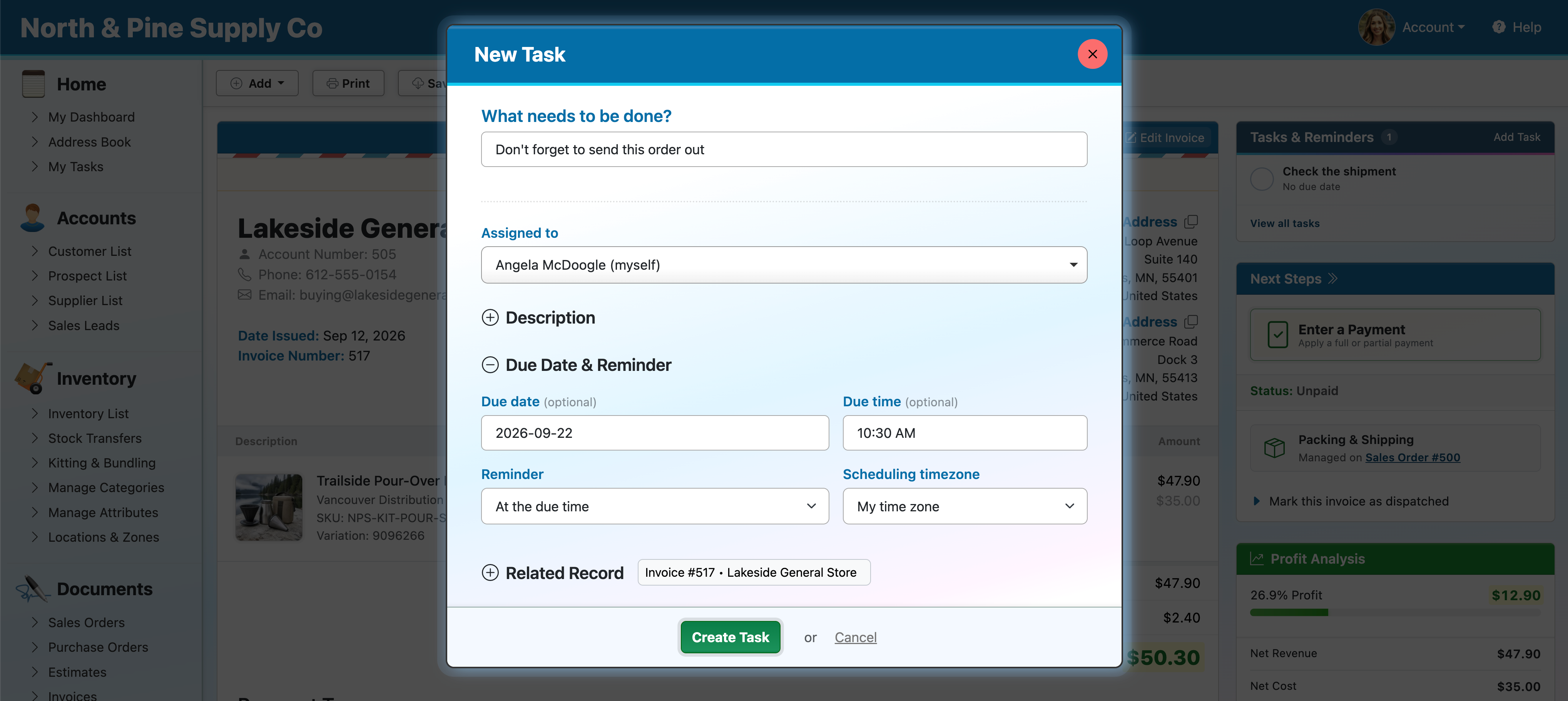
You can also create a task while viewing a customer account, inventory item, invoice, purchase order, sales order, or estimate.
Creating a task from one of these pages automatically links it to that record—there’s no need to select the related record yourself.
For example, while viewing an estimate, you could create a task to follow up with the customer next week. The task will already be linked to that estimate, making it easy to open it and review the details when your reminder arrives.
You can assign the task, add a due date and time, and schedule a reminder just as you would from the Tasks page. The assigned person must also have permission to access the linked record.